





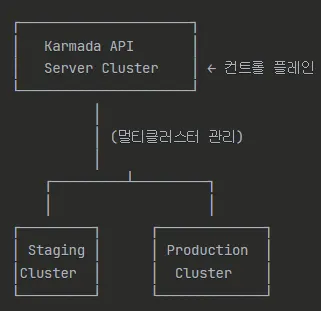
총 3개의 클러스터가 필요하다.

•
Karmada API Server 클러스터 (컨트롤 플레인)
•
Production 클러스터 (demo-prod-cluster)
•
Staging 클러스터 (demo-staging-cluster)
aws eks update-kubeconfig --name demo-karmada-cluster --region ap-northeast-2
Shell
복사
helm repo add karmada https://raw.githubusercontent.com/karmada-io/karmada/master/charts
helm repo update
helm install karmada karmada/karmada --create-namespace --namespace karmada-system
Shell
복사
sudo curl -s https://raw.githubusercontent.com/karmada-io/karmada/master/hack/install-cli.sh | sudo bash -s kubectl-karmada
Shell
복사
sudo yum install git -y
Shell
복사
(
set -x; cd "$(mktemp -d)" &&
OS="$(uname | tr '[:upper:]' '[:lower:]')" &&
ARCH="$(uname -m | sed -e 's/x86_64/amd64/' -e 's/\(arm\)\(64\)\?.*/\1\2/' -e 's/aarch64$/arm64/')" &&
KREW="krew-${OS}_${ARCH}" &&
curl -fsSLO "https://github.com/kubernetes-sigs/krew/releases/latest/download/${KREW}.tar.gz" &&
tar zxvf "${KREW}.tar.gz" &&
./"${KREW}" install krew
)
export PATH="${KREW_ROOT:-$HOME/.krew}/bin:$PATH"
Shell
복사
kubectl krew install karmada
Shell
복사
•
설치 후 cluster security group의 32443 port를 허용
•
karmada, prod, staging 모든 노드의 보안그룹에도 인바운드에 32443 port를 허용
aws eks update-kubeconfig --name demo-prod-cluster --region ap-northeast-2
aws eks update-kubeconfig --name demo-staging-cluster --region ap-northeast-2
Shell
복사
Bug
sudo /usr/local/bin/kubectl karmada init --kubeconfig /home/ec2-user/.kube/config
Shell
복사
•
Production Cluster Join
rm -rf ~/.kube/config
aws eks update-kubeconfig --name demo-prod-cluster --region ap-northeast-2
sudo kubectl karmada --kubeconfig /etc/karmada/karmada-apiserver.config join prod --cluster-kubeconfig=$HOME/.kube/config
Shell
복사
•
Staging Cluster Join
rm -rf ~/.kube/config
aws eks update-kubeconfig --name demo-staging-cluster --region ap-northeast-2
sudo kubectl karmada --kubeconfig /etc/karmada/karmada-apiserver.config join staging --cluster-kubeconfig=$HOME/.kube/config
Shell
복사
•
Karmada API Server Config
rm -rf ~/.kube/config
sudo cp /etc/karmada/karmada-apiserver.config ~/.kube/config
Shell
복사
sudo chown ec2-user:ec2-user ~/.kube/config
sudo chmod 600 ~/.kube/config
Shell
복사
kubectl get clusters
Shell
복사

apiVersion: policy.karmada.io/v1alpha1
kind: PropagationPolicy
metadata:
name: staging-rp
spec:
resourceSelectors:
- apiVersion: apps/v1
kind: Deployment
labelSelector:
matchLabels:
stage: staging
- apiVersion: v1
kind: Service
labelSelector:
matchLabels:
stage: staging
- apiVersion: v1
kind: Pod
labelSelector:
matchLabels:
stage: staging
- apiVersion: apps/v1
kind: StatefulSet
labelSelector:
matchLabels:
stage: staging
placement:
clusterAffinity:
clusterNames:
- staging
---
apiVersion: policy.karmada.io/v1alpha1
kind: PropagationPolicy
metadata:
name: prod-rp
spec:
resourceSelectors:
- apiVersion: apps/v1
kind: Deployment
labelSelector:
matchLabels:
stage: prod
- apiVersion: v1
kind: Service
labelSelector:
matchLabels:
stage: prod
- apiVersion: v1
kind: Pod
labelSelector:
matchLabels:
stage: prod
- apiVersion: apps/v1
kind: StatefulSet
labelSelector:
matchLabels:
stage: prod
placement:
clusterAffinity:
clusterNames:
- prod
YAML
복사
kubectl apply -f karmada.yaml
Shell
복사
apiVersion: apps/v1
kind: Deployment
metadata:
name: staging-nginx
labels:
stage: staging
spec:
replicas: 2
selector:
matchLabels:
stage: staging
template:
metadata:
labels:
stage: staging
spec:
containers:
- image: nginx
name: nginx
YAML
복사
kubectl apply -f staging-deploy.yaml
Shell
복사
apiVersion: apps/v1
kind: Deployment
metadata:
name: prod-nginx
labels:
stage: prod
spec:
replicas: 2
selector:
matchLabels:
stage: prod
template:
metadata:
labels:
stage: prod
spec:
containers:
- image: nginx
name: nginx
YAML
복사
kubectl apply -f prod-deploy.yaml
Shell
복사
aws eks update-kubeconfig --name demo-staging-cluster --region ap-northeast-2
kubectl get deployments -n default
Shell
복사
aws eks update-kubeconfig --name demo-prod-cluster --region ap-northeast-2
kubectl get deployments -n default
Shell
복사
aws eks update-kubeconfig --name demo-karmada-cluster --region ap-northeast-2
Shell
복사
•
출력된 주소를 Application 파일에 등록
cat ~/.kube/config | grep server | awk '/server:/ {print $2}'
Shell
복사
kubectl create namespace argocd
kubectl apply -n argocd -f https://raw.githubusercontent.com/argoproj/argo-cd/v2.13.1/manifests/install.yaml
Shell
복사
sudo curl --silent --location -o /usr/local/bin/argocd https://github.com/argoproj/argo-cd/releases/download/v2.13.1/argocd-linux-amd64
sudo chmod 755 /usr/local/bin/argocd
Shell
복사
kubectl patch svc argocd-server -n argocd -p '{"spec": {"type": "LoadBalancer"}}'
Shell
복사
export ARGOCD_SERVER=`kubectl get svc argocd-server -n argocd -o json | jq --raw-output '.status.loadBalancer.ingress[0].hostname'`
echo $ARGOCD_SERVER
export ARGO_PWD=`kubectl -n argocd get secret argocd-initial-admin-secret -o jsonpath="{.data.password}" | base64 -d`
echo $ARGO_PWD
argocd login $ARGOCD_SERVER --username admin --password $ARGO_PWD --insecure
Shell
복사
argocd cluster add karmada-apiserver --kubeconfig ~/.kube/config --yes
Shell
복사
apiVersion: argoproj.io/v1alpha1
kind: Application
metadata:
name: demo-app
namespace: argocd
finalizers:
- resources-finalizer.argocd.argoproj.io
spec:
project: default
source:
repoURL: https://github.com/<Github_Username>/demo-argo.git
targetRevision: HEAD
path: manifest
destination:
server: https://10.0.3.163:32443
namespace: default
syncPolicy:
automated:
prune: true
selfHeal: true
allowEmpty: false
syncOptions:
- Validate=false
- CreateNamespace=true
- PrunePropagationPolicy=foreground
- PruneLast=true
retry:
limit: 5
backoff:
duration: 5s
factor: 2
maxDuration: 3m
YAML
복사
kubectl apply -f application.yaml
Shell
복사
argocd app get demo-app
Shell
복사
Github Repository에서 아래의 파일을 선언하였는데 Label이 staging이면 staging Cluster의 배포가 되고 prod이면 prod Cluster의 배포가 되는 모습을 확인 할 수 있다.
apiVersion: apps/v1
kind: Deployment
metadata:
name: staging-nginx
labels:
stage: staging
spec:
replicas: 2
selector:
matchLabels:
stage: staging
template:
metadata:
labels:
stage: staging
spec:
containers:
- image: nginx
name: nginx
YAML
복사